How to Make Google Docs Read Aloud: 4 Methods That Actually Work
• Google has been testing a built-in read-aloud in Docs ("Listen to this tab"), but it is paid-plan and English-only, and it cannot export audio.
• Chrome's Read Aloud is free and instant, but uses robotic system voices and cannot export audio.
• Screen readers like ChromeVox are built for accessibility navigation, not casual listening.
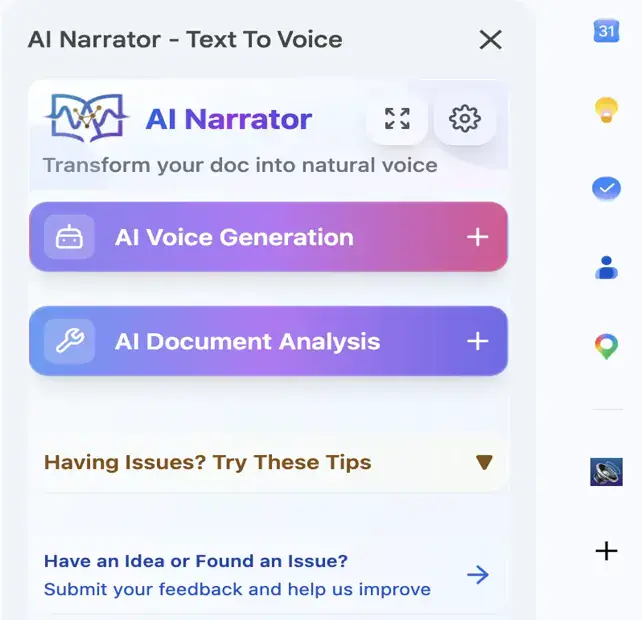
• AI Narrator adds 29+ natural AI voices, 22+ languages, 19 presets, and WAV downloads (Pro) inside Google Docs.
• All four methods run on Windows, Mac, and Chromebook; mobile support varies.
The most common mix-up is Voice Typing. Under Tools > Voice Typing, Google Docs listens to your microphone and types what you say — that is speech-to-text. Text-to-speech is the reverse: it reads your written text aloud. They sit in the same menu but do opposite jobs. If someone tells you Google Docs can "read aloud" and points you to Voice Typing, they are wrong. For listening, you need text-to-speech, and the rest of this guide covers the four practical ways to get it.
Google's stated direction has been to make Docs work excellently with dedicated screen readers rather than to build casual TTS into the editor. That is a reasonable accessibility strategy — screen readers need deep, stable hooks — but it leaves everyday users without an obvious way to listen. The good news is that every method below is free to start and takes minutes to set up.
Step 1: Open Your Google Doc in Chrome
Navigate to docs.google.com and open your document. This method uses Chrome on a computer; it is not available in the Google Docs mobile app.
Step 2: Enable Read Aloud in Chrome Settings
Go to Chrome Settings > Accessibility and turn on "Read aloud highlighted text" if it is not already on. Newer Chrome versions also add a "Read aloud" option to the right-click menu.
Step 3: Right-Click and Select Read Aloud
Place your cursor where you want to start, right-click, and choose "Read aloud." Chrome reads from that point using the system's default voice.
Step 4: Control Playback
A small toolbar appears with play/pause and paragraph navigation. Speed and voice are managed through your operating system's TTS settings.
No Installation Required
Works immediately in Chrome without extensions or add-onsCompletely Free
No cost, no accounts, no usage limitsBasic Playback Controls
Play, pause, and skip between paragraphsSpeed Adjustment
Slow down or speed up reading via system TTS settings
Robotic Voice Quality
Uses your system's default TTS voice, which sounds mechanical and lacks natural intonationLimited Voice Options
Only the 2–3 voices your operating system installs by defaultNo Audio Download
Cannot save the audio as a file for offline listening or sharingDepends on the OS
Voice quality and availability vary between Windows, macOS, and ChromeOS
Full Document Navigation
Move by heading, paragraph, word, or character with keyboard shortcutsPlatform Native
Built into ChromeOS, macOS, and Android (NVDA is a free Windows install)Accessibility Standard
The industry-standard approach for users with visual impairments
Want to hear these voices yourself?
Try our AI Narrator for free right now. No sign-up required.
Steep Learning Curve
Screen readers use complex keyboard shortcuts that take real time to masterRobotic Voice Quality
Default voices are optimized for speed, not pleasant listeningReads Everything
Vocalizes menus and interface elements, not just your documentNo Audio Export
You cannot download the reading as an audio file
Easy Installation
One-click install from the Chrome Web StoreBetter Voice Quality
Premium tools like Speechify and NaturalReader clearly beat system voicesText Selection
Read specific selections rather than the whole pageMulti-Language Support
Keep an eye on actual voice counts — coverage varies widely by tool
Small Free Tiers
Many popular extensions restrict free use to a few minutes or characters per dayGeneric Integration
Most are designed for reading web articles, not structuring a Google DocNo Audio Download (Often)
Free tiers usually withhold file downloads behind paid plansPrivacy Considerations
Document text is sent to the extension vendor's servers for processing
29+ Natural AI Voices
Professional voices that sound human rather than mechanical22+ Languages
English, Spanish, Portuguese, French, German, Japanese, Hindi, and moreWorks Inside Google Docs
A native sidebar inside the editor — no tab-switchingDownload Audio Files
Export narration as WAV on the Pro plan for podcasts, presentations, or offline listening
Read Selected Text
Highlight a section and only that section generates audioSpeed Control
Adjust playback speed to match your listening preferenceAI Document Analysis
Recognizes headings and paragraphs so phrasing breathes like a human readFree to Start
Free plan: 5 conversions/month. Pro (~$7/month): 100 conversions + WAV + cloning
Ready to Try AI Narrator?
Start converting your Google Docs into professional audio today. Free forever!
Add to Doc - It's freeStep 1: Install AI Narrator
Go to the Google Workspace Marketplace, search for "AI Narrator," and install the add-on.
Step 2: Open Your Google Document
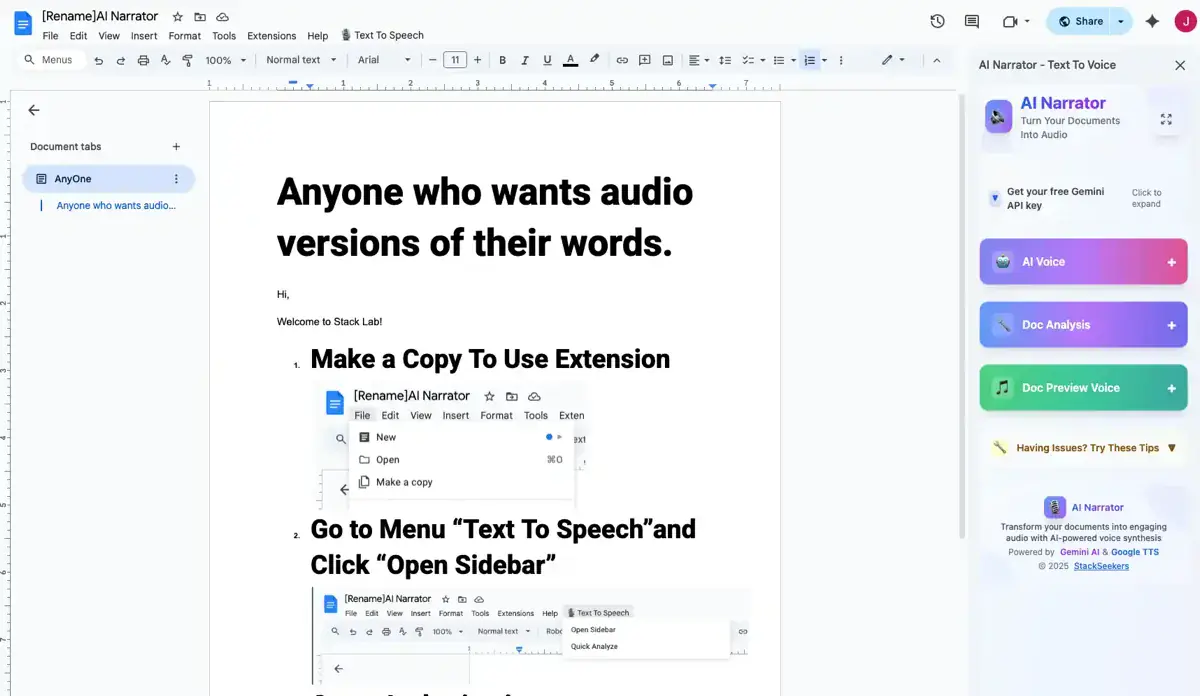
Open any Google Doc. The AI Narrator sidebar appears on the right side of the editor.
Step 3: Launch the Sidebar
If it is not visible, find it under Extensions > AI Narrator > Open. The panel shows voices, presets, playback controls, and settings.
Step 4: Choose Your Voice or Preset
Pick one of the 29+ voices or a preset like Storyteller, ASMR & Relaxation, or Lecture & Concepts, and preview it before generating.
Step 5: Select Text or Use the Whole Document
Highlight a specific passage, or leave nothing selected to read the entire document top to bottom.
Step 6: Generate and Listen
Click Generate. AI Narrator processes the text and plays it back with natural prosody. A conversion handles up to 10,000 characters.
Step 7: Download Your Audio
On the Pro plan, use the download button to save a WAV file for presentations, podcasts, or students.
| Feature | Chrome Built-in | Read Aloud Extension | Screen Reader | AI Narrator |
|---|---|---|---|---|
| Voice Quality | Robotic system voice | Varies — free tiers often robotic | Robotic | Natural AI |
| Number of Voices | 2-3 system voices | Varies by tool | System voices | 29+ |
| Languages | System voices only | Varies (Speechify 60+; NaturalReader 100+) | System voices | 22+ |
| Download Audio | No | Often paid only | No | Yes (WAV on Pro) |
| Speed Control | Basic | Yes | Varies | Yes |
| Google Docs Integration | Browser overlay | Toolbar button | Full navigation | Native sidebar |
| Text Selection | Cursor-based | Yes | By keyboard | Yes |
| Best For | Quick checks | Casual listening | Accessibility | Listening + export |
| Cost | Free | Free / paid | Free | Free plan / Pro ~$7/mo |
| Tool | Free Plan | AI Voices | Languages | Audio Download | Best For |
|---|---|---|---|---|---|
| AI Narrator | Yes — 5 TTS/mo | 32 natural AI | 21 | WAV (Pro) | Docs + downloadable audio |
| Chrome Read Aloud | Yes | System TTS | System voices | No | Quick checks |
| Speechify | Very limited | 1,000+ | 60+ | Paid plans | Web article listening |
| NaturalReader | Yes — strong | Premium in paid tiers | 100+ | Paid plans | Personal reading + OCR |
| ChromeVox | Yes | System TTS | System voices | No | Accessibility |
Can Google Docs read to me?
Yes — Google has been testing a built-in reader inside Docs ("Listen to this tab" under Tools > Audio), though it is currently paid-plan, English-only on desktop, and cannot export audio. Beyond that, Chrome's built-in read-aloud, screen readers like ChromeVox and VoiceOver, or extensions/add-ons like AI Narrator all work.
Is there text-to-speech in Google Docs?
Not as a native button. Google Docs supports text-to-speech via Chrome accessibility features, screen reader compatibility, and third-party tools that hook into the editor.
Where is Read Aloud in Google Docs?
It does not exist as a toolbar item. With Chrome, right-click your document and choose "Read aloud." With AI Narrator, open the add-on sidebar under Extensions.
Can I download audio from Google Docs?
Not with built-in tools, but AI Narrator exports WAV files on its Pro plan. Some consumer tools like Speechify and NaturalReader offer MP3 downloads on paid tiers.
Which tool has the most natural voices?
In my listening tests, AI Narrator's 29+ neural voices and Speechify's premium voices are both clearly ahead of system TTS. AI Narrator pairs that quality with in-document reading and file export.
Does text-to-speech work on mobile?
Yes, with limits. Android offers TalkBack and Select-to-Speak; iOS offers VoiceOver and Speak Screen. Desktop add-ons like AI Narrator work best on a computer — generate audio there and transfer the file for mobile listening.
Is AI Narrator free?
Yes — the free plan includes 5 text-to-speech conversions per month. The Pro plan is about $7/month and adds 100 conversions, WAV downloads, voice cloning, and a custom voice library.
Which extension is best for Google Docs TTS?
For reading plus file export, AI Narrator is the strongest Google Docs-specific option thanks to its native sidebar, 29+ voices, 22+ languages, and WAV downloads. For casual web listening, Speechify and NaturalReader remain popular choices.
Can I use text-to-speech offline?
Chrome's read-aloud and some system voices work offline, but they sound robotic. AI Narrator generates audio online; download the WAV file for offline listening.
How do I make Google Docs read selected text?
With Chrome, highlight the text, then right-click and choose "Read aloud." With AI Narrator, highlight a section and click Generate — only the selection converts.
What's the difference between Voice Typing and text-to-speech?
Voice Typing converts your speech into text (speech-to-text); text-to-speech reads your text aloud. If you want Docs to read to you, use a text-to-speech tool.
Hear your own text read aloud — free, right here
Paste any text and listen in 50+ natural AI voices. No download and no sign-up required.
Open the Free Text-to-Speech ToolSources
Disclosure
Some of the tools compared on this site — including AI Narrator — are our own products. We review them on the same footing as competitors, on current pricing and hands-on testing, and always tell you when a product is ours.