Complete Guide to Text to Speech in Google Docs
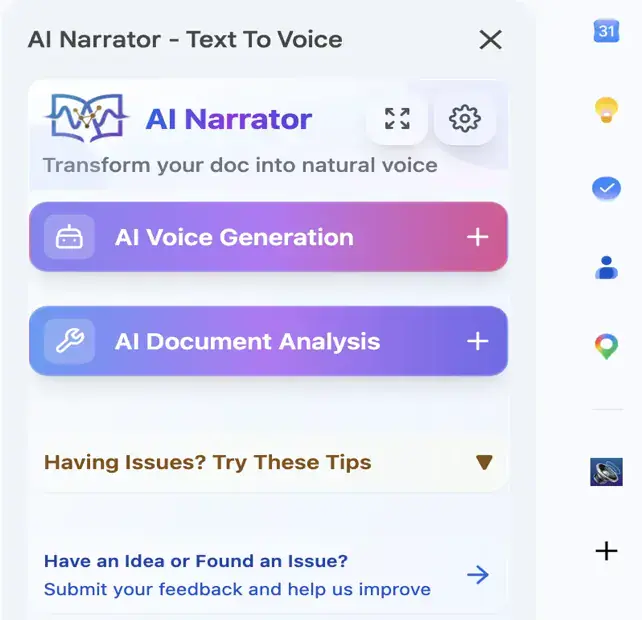
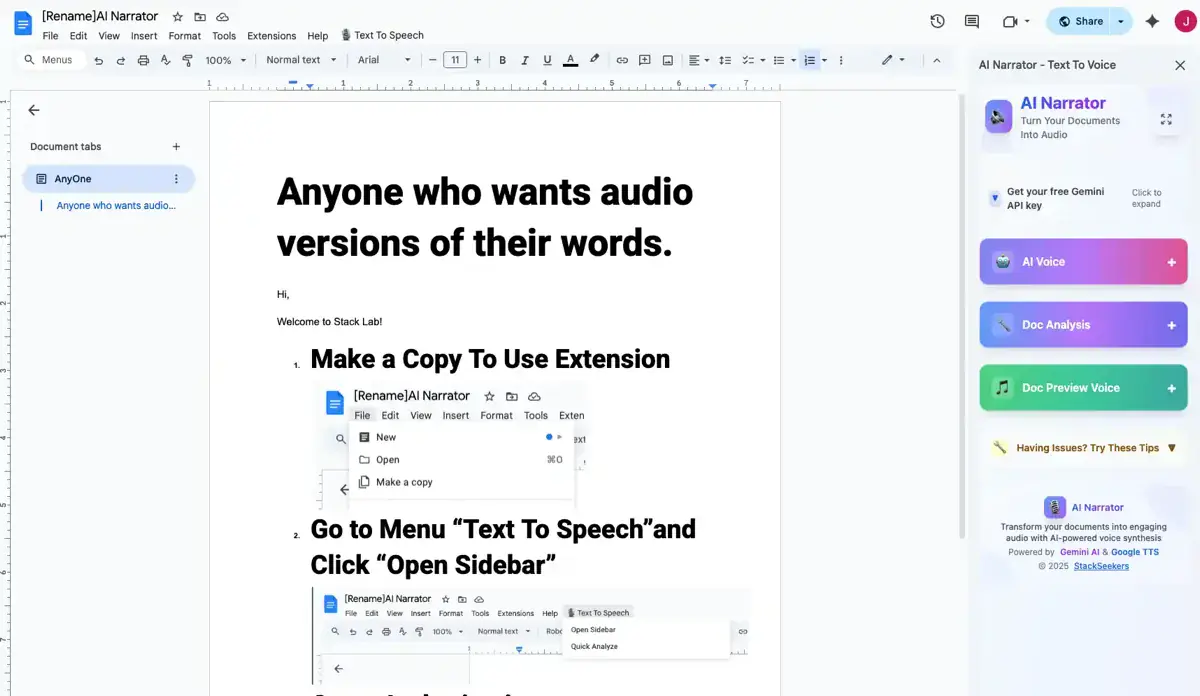
Text-to-speech opens up new ways to consume content — multitasking, accessibility, and audio distribution all become easier when you can listen to a document. You can explore our comparison of free TTS tools to see how different solutions stack up.
29+ AI Voices
A range of professional AI voices across 22+ languages.Google Docs Integration
Works with your existing Google Docs documents.22+ Languages
Support for a broad set of global languages.Runs in the Browser
Works directly in your browser — no separate desktop install.
Want to hear these voices yourself?
Try our AI Narrator for free right now. No sign-up required.
Step 1: Install AI Narrator
Add AI Narrator to your Google Docs from the Workspace Marketplace or Chrome Web Store.
Once installed, you'll see the AI Narrator option in your Google Docs Extensions menu.
Step 2: Open Your Document
Open the Google Doc you want to convert. Make sure it's saved.
You can convert the entire document or select specific text.
Step 3: Select Your Voice
Open the AI Narrator sidebar from the Extensions menu. You'll see voice and preset options.
Choose from 29+ voices across 22+ languages, and preview each one before generating.
Step 4: Generate Audio
Click the generate button. AI Narrator processes your document and creates the audio, with a max input of 10,000 characters per conversion.
Processing time depends on length, but most documents complete in under a minute.
Step 5: Download or Play
Once generated, you can play the audio in your browser or download it as a WAV file (WAV download is a Pro feature).
The free plan includes 5 TTS conversions per month; Pro (about $7/month) raises that to 100.
To get the best results, follow these tips:
Use Clear Formatting
Well-formatted documents with headings produce better audio with natural pauses and breaks.Choose the Right Voice
Match the voice to your content — professional voices for business documents, warmer voices for personal content.Check Language Settings
Make sure the voice language matches your document language for accurate pronunciation.Preview Before Generating
Always listen to a preview before generating the full audio to confirm the voice fits.
Use Cases for Google Docs Text-to-Speech
| Use Case | Benefit | Best Voice Type |
|---|---|---|
| Content Creation | Create audio versions of articles for podcasting | Natural, conversational |
| Education | Students listen to study materials while multitasking | Clear, professional |
| Accessibility | Provides audio access for users who prefer listening | Natural, easy to understand |
| Business Presentations | Convert documents to audio for mobile consumption | Professional, authoritative |
| Language Learning | Listen to documents in another language for pronunciation practice | Native speaker |
Ready to Try AI Narrator?
Start converting your Google Docs into professional audio today. Free forever!
Add to Doc - It's freeAI Narrator is designed specifically for Google Docs integration. Because it reads the document structure directly, it creates audio that respects headings, paragraphs, and sections. For a detailed walkthrough of conversion methods, check our guide to turning Google Docs into audio files.
Related Guides
- How to Turn Google Docs into Audio Files — Multiple methods compared, from AI Narrator to screen recording.
- AI Narrator for Audiobooks: Best Voices & Presets — Which voice presets work best for audiobook narration.
- AI Narrator vs ElevenLabs — Head-to-head comparison with the industry leader.
Converting Google Docs to speech is straightforward with AI Narrator. You can turn any document into professional audio in minutes. Start with the free plan and upgrade to Pro when you need more conversions and audio export.
Hear your own text read aloud — free, right here
Paste any text and listen in 50+ natural AI voices. No download and no sign-up required.
Open the Free Text-to-Speech ToolDisclosure
Some of the tools compared on this site — including AI Narrator — are our own products. We review them on the same footing as competitors, on current pricing and hands-on testing, and always tell you when a product is ours.