Hızlı Cevap
Hızlı Cevap: Blog yazarlarını podcast bölümlerine dönüştürmek için makalenizi Google Docs'ta açın, AI Narrator kenar çubuğunu açın, Creator/Storyteller gibi premium bir ön ayar seçin ve sesinizi oluşturun. WAV dosyasını indirin, bir intro/outro ekleyin ve işitsel kitleleri yakalamak için Spotify veya Apple Podcasts'te yayınlayın.
Bu sesleri kendiniz duymak ister misiniz?
AI Narrator'ı hemen ücretsiz deneyin. Kayıt gerekmez.
📈 İçerik Erişimini İki Katına Çıkarın
Aksi takdirde blogunuzu asla bulamayacak olan Spotify, Apple Podcasts ve Amazon Music gibi platformlardaki dinleyicilere ulaşın.⏳ Sayfada Kalma Süresini Maksimize Edin
Yazılı makalelerinize bir ses oynatıcı eklemek, arama motoru SEO'su için önemli bir olumlu sıralama sinyali olan kullanıcı kalış süresini artırır.🔄 Verimli Bir Şekilde Yeniden Amaca Uyarlayın
Yeni konular hakkında beyin fırtınası yapmanıza gerek yok. İyi performans gösteren mevcut blog makalelerinizi yüksek değerli podcast bölümlerine dönüştürün.
| Podcast Boyutu | Geleneksel Kayıt | AI Narrator İş Akışı |
|---|---|---|
| Gerekli Ekipman | Stüdyo mikrofonu, pop filtre, ses kartı | Sadece bir tarayıcı |
| Kayıt Alanı | Ses yalıtımlı sessiz oda | Her yerde, tamamen sessiz üretim |
| Düzenleme Süresi | "Iıı"ları, patlama seslerini, nefesleri temizlemek için saatler | Düzenleme gerektirmez |
| Yeniden Amaçlandırma Maliyeti | Yüksek (zaman veya yetenek kiralama) | Ücretsiz/Dahil |
Adım 1: Metninizi Google Docs'ta Hazırlayın
Yayınlanan blog yazınızı Google Docs'te açın.
"Aşağıdaki bağlantıya tıklayın" veya "yukarıdaki görselde görüldüğü gibi" gibi web'e özgü ifadeleri kaldırın. Bunları ses dostu alternatiflerle değiştirin.
Adım 2: Podcast Girişi ve Çıkışı Ekleme
Kısa bir giriş (örn. "[Podcast Adı] podcast'ine tekrar hoş geldiniz...") ve sonuna net bir harekete geçirici mesaj (outro) ekleyin.
Bu, ses dosyanıza profesyonel bir podcast formatı kazandırır.
Adım 3: "İçerik Üreticisi/Hikaye Anlatıcısı" Ön Ayarını Seçin
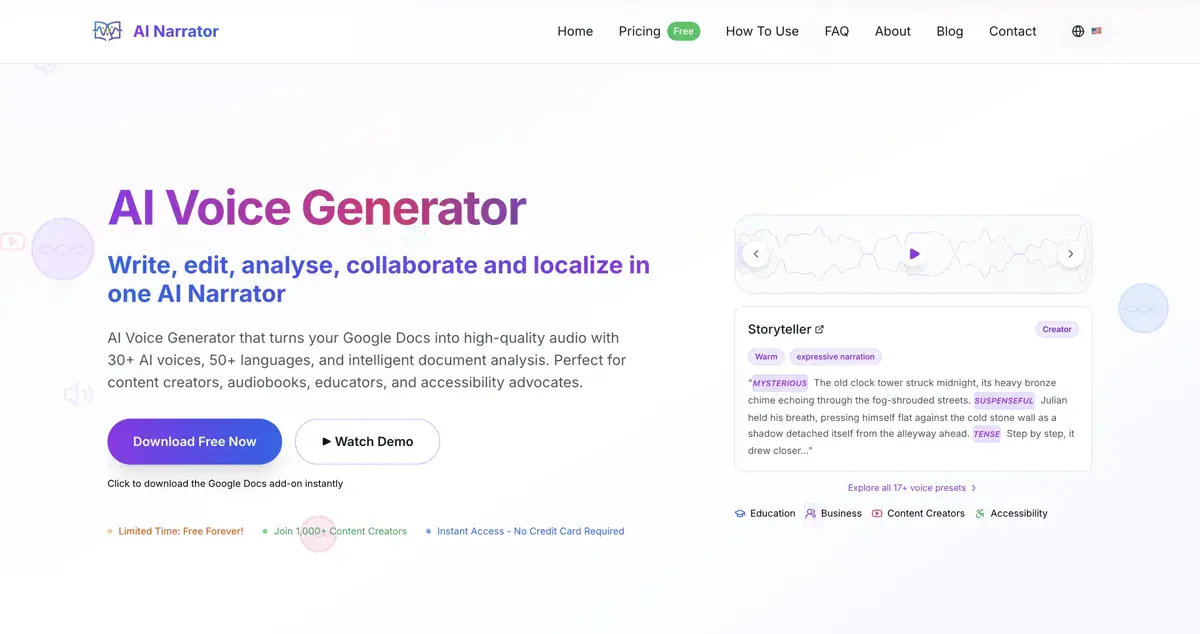
AI Narrator kenar çubuğunu açın. Yazınızın tonuna göre "Hikaye Anlatıcısı" veya "Yönetici Sunumu" ön ayarını seçin. Daha fazla seçenek için podcast'ler için en iyi ses ön ayarları kılavuzumuza göz atın.
Oluştur'a tıklayın ve ton ile hızın içeriğinizle eşleştiğinden emin olmak için ses akışını dinleyin.
Adım 4: İndirin ve Dağıtın
Oluşturulan WAV dosyasını indirin.
Sesi podcast barındırıcınıza (Spotify for Podcasters veya Libsyn gibi) yükleyin ve orijinal blog yazınızın en üstüne yerleştirin.
AI Narrator'ı Denemeye Hazır mısınız?
Google Docs'unuzu bugün profesyonel sese dönüştürmeye başlayın. Sonsuza kadar ücretsiz!
Docs'a Ekle — Ücretsiz- Sesli Kitaplar için AI Narrator: En İyi Sesler ve Ön Ayarlar — Anlatı ve sohbet içerikleri için ses ön ayarları.
- Google Docs Ses Dosyalarına Nasıl Dönüştürülür — Tüm ses dönüştürme yöntemleri karşılaştırıldı.
- AI Narrator ve ElevenLabs — Belge tabanlı içerik oluşturmada AI Narrator neden daha hızlı?
- 2026'nın En İyi ElevenLabs Alternatifleri — Tüm yapay zeka ses araçlarının tam karşılaştırması.
Kendi metninizin yüksek sesle okunmasını dinleyin — ücretsiz, tam burada
Herhangi bir metni yapıştırın ve 50'den fazla doğal AI sesinde dinleyin. İndirme ve kayıt gerekmez.
Ücretsiz TTS Aracını AçDisclosure
Some of the tools compared on this site — including AI Narrator — are our own products. We review them on the same footing as competitors, on current pricing and hands-on testing, and always tell you when a product is ours.