Does Google Docs Have Text to Speech? Everything You Need to Know
Find out if Google Docs has built-in text-to-speech, what options are available, and how to get natural AI voice read-aloud in your documents.
Quick Answer
Google is testing a built-in read-aloud in Docs ("Listen to this tab"), but it is limited to eligible paid Workspace/Google AI plans, English on desktop, and cannot export audio. For natural AI voices in 22+ languages — 29+ voices you can actually download — a dedicated add-on like AI Narrator is the better choice.
While Google Docs lacks a standalone "Read Aloud" button, there are a few native and semi-native options worth understanding before exploring third-party tools.
Chrome Read Aloud
Chrome's accessibility feature can read web pages and Google Docs aloud using your system's default voice. It's basic but functional for quick read-aloud sessions.Screen Reader Support
Google Docs works with screen readers like ChromeVox and JAWS. This is designed for accessibility rather than casual listening.Google TTS (Android)
On Android, Google's TTS engine can read text in supported apps, but this doesn't directly integrate with Google Docs on desktop.
Want to hear these voices yourself?
Try our AI Narrator for free right now. No sign-up required.
Chrome's Read Aloud reads the page content with your system voice, which means the quality can be robotic, there are no granular pitch or emotion controls, and you can't download the audio. It's fine for a quick listen but limited for production or accessibility needs beyond basic playback.
| Feature | Chrome Read Aloud | AI Narrator |
|---|---|---|
| Voice Quality | Basic system voice | 29+ neural AI voices |
| Language Support | System-based | 22+ languages |
| Speed/Pitch Control | Limited | Yes, plus emotion tags |
| Download Audio | No | Yes, WAV on Pro |
| Text Selection | Page-level | Select specific text |
| Integration | Browser overlay | Native Google Docs panel |
Step 1: Check Chrome's Built-in Read Aloud
Right-click in Google Docs and choose "Read aloud selection" if available. This uses your system TTS voice and works for basic read-aloud needs.
Step 2: Explore Chrome's Accessibility Settings
Open Chrome Settings > Accessibility to enable screen-reader support or explore additional voices, though quality stays limited.
Step 3: Try a Dedicated Add-On Like AI Narrator
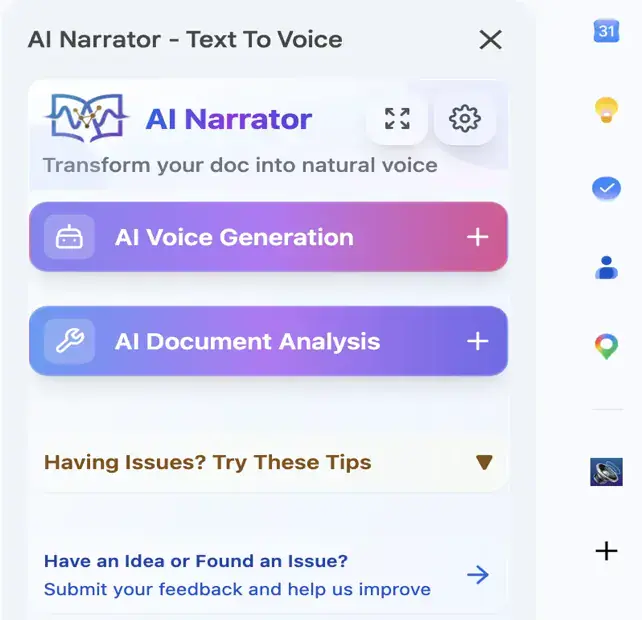
For a better experience, install AI Narrator from the Google Workspace Marketplace. It adds a native panel to Google Docs with 29+ AI voices across 22+ languages, plus the ability to download audio (WAV on Pro).
Step 4: Choose Your Voice and Listen
Browse the voice library, preview voices, and start listening. You can read specific sections or process the entire document.
Text-to-speech serves a wide range of users. Students use it to review notes while commuting. Writers and editors use it to catch errors by listening to their work. People with dyslexia or visual impairments rely on it for accessibility. Language learners use it to hear native pronunciation. And busy professionals use it to consume documents hands-free.
Ready to Try AI Narrator?
Start converting your Google Docs into professional audio today. Free forever!
Add to Doc - It's freeProofreading by Listening
Your ear catches mistakes your eye misses. Listening is one of the most effective proofreading techniques.Accessibility
Provides audio access for users with visual impairments, dyslexia, or reading difficulties.Multitasking
Consume documents while cooking, exercising, or commuting — no screen required.Language Learning
Hear pronunciation across 22+ languages with natural AI voices.
AI Narrator is built specifically as a Google Docs add-on, so it reads your document structure directly and creates audio that respects headings, paragraphs, and formatting. The 29+ neural voices sound closer to human speech than a system reader, and you can switch between languages and presets. For a deeper comparison, see our roundup of the best TTS tools for Google Docs.
Hear your own text read aloud — free, right here
Paste any text and listen in 29+ natural AI voices. No download and no sign-up required.
Open the Free Text-to-Speech ToolDisclosure
Some of the tools compared on this site — including AI Narrator — are our own products. We review them on the same footing as competitors, on current pricing and hands-on testing, and always tell you when a product is ours.