AI Narrator vs Google TTS: Built-in vs Add-on Text-to-Speech Compared
AI Narrator vs Google TTS: Compare the built-in Google Docs screen reader with AI Narrator's AI voice add-on. See why natural AI voices beat robotic TTS for document narration.
Quick Answer
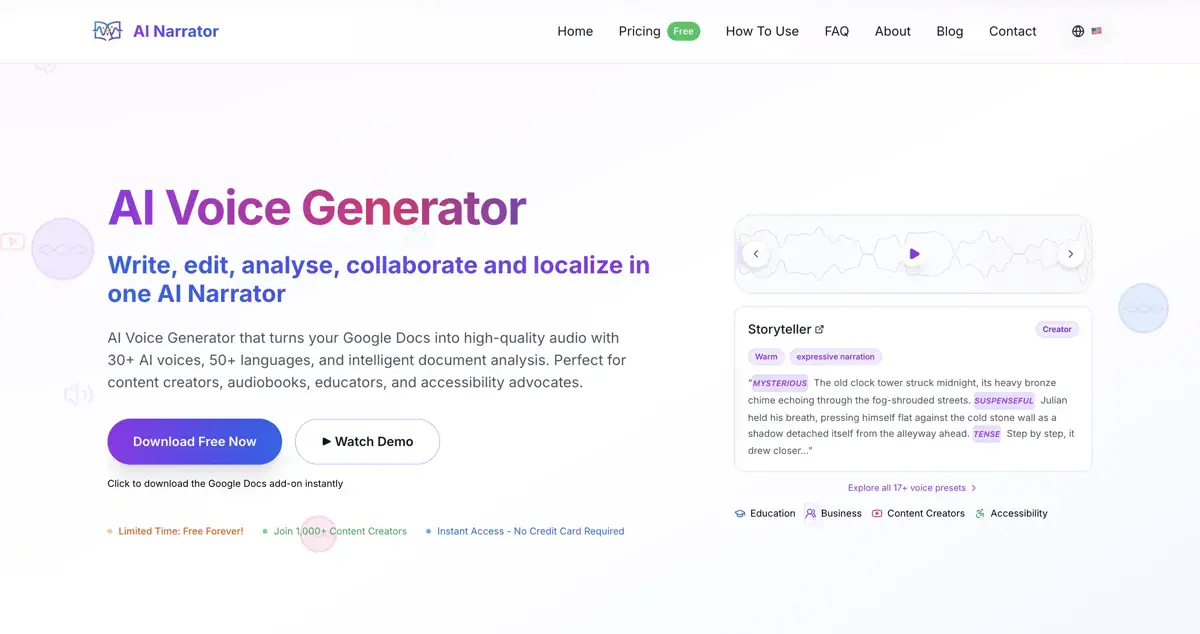
Google Docs has a built-in screen reader, but it produces basic, somewhat robotic speech designed for accessibility rather than polished audio. AI Narrator adds 29+ natural AI voices, 19 genre presets, and downloadable WAV output. If you want your documents to sound professional or to publish audio files, AI Narrator is the upgrade.
Want to hear these voices yourself?
Try our AI Narrator for free right now. No sign-up required.
AI Narrator vs Built-in Google TTS at a Glance
| Feature / Criteria | AI Narrator | Google TTS (Built-in) |
|---|---|---|
| Voice Presets | 19 genre-optimized presets | System voices only |
| WAV Download | Yes (Pro plan) | No download option |
| Setup | One-click sidebar install | Screen reader software needed |
| Voice Quality | Natural AI voices with inflection | Basic, robotic |
| Voices | 29+ across 22+ languages | System-dependent |
| Cost | Free plan; ~$7/mo Pro | Free (built-in) |
What I Found in Testing
Voice Quality for Long-Form Content
The built-in Google reader uses system-level speech designed for short accessibility reads; over a few paragraphs it stays monotone and flat. AI Narrator runs on Google’s Gemini TTS engine, so voices carry natural inflection, and the 19 presets adjust pacing and emphasis per content type. For audiobooks, lectures, or any content someone listens to for a while, the difference is immediate.Audio Export & Distribution
The built-in reader plays audio live through your operating system — you cannot save, download, or share it. AI Narrator generates downloadable WAV files on Pro for sharing, podcast embedding, or publishing to audiobook platforms.When the Built-in Reader is Enough
Google’s built-in TTS is perfectly adequate for a quick, personal accessibility read or for on-the-fly screen reading while you multitask. If you only need a document read once and never need the file back, the built-in tool works. If you need professional output, audio files, or natural narration, AI Narrator is the upgrade.
Ready to Try AI Narrator?
Start converting your Google Docs into professional audio today. Free forever!
Add to Doc - It's freeWhen to Use Each Tool
Use AI Narrator if:
You want documents to sound like a professional audiobook, podcast, or presentation.
You need downloadable WAV files for distribution, accessibility compliance, or repurposing.
You want genre-specific presets such as Storyteller, Lecture & Concepts, or Executive Pitch.
You need narration across multiple of the 22+ supported languages with natural pronunciation.
Use the built-in Google reader if:
You just need a quick personal accessibility read.
You are using a screen reader for live document navigation.
You do not need audio files and prefer a zero-install, built-in tool.
More Comparisons
Hear your own text read aloud — free, right here
Paste any text and listen in 29+ natural AI voices. No download and no sign-up required.
Open the Free Text-to-Speech ToolDisclosure
Some of the tools compared on this site — including AI Narrator — are our own products. We review them on the same footing as competitors, on current pricing and hands-on testing, and always tell you when a product is ours.